Practice and assessment modes
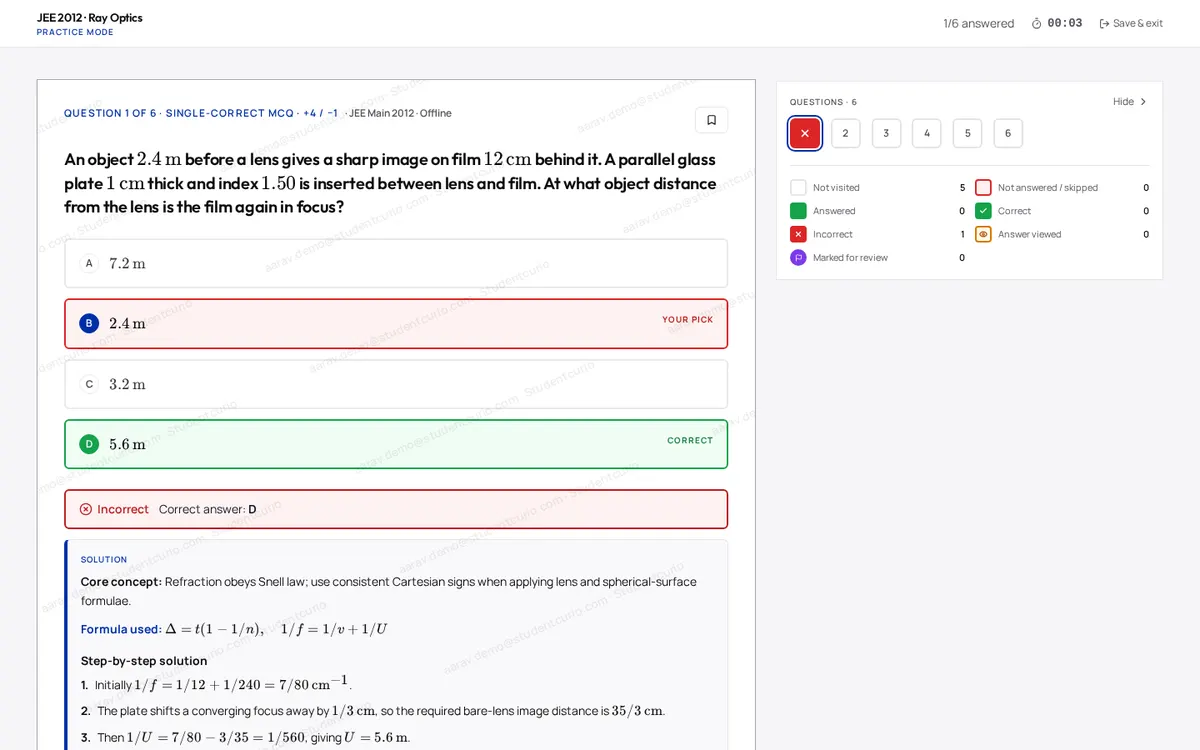
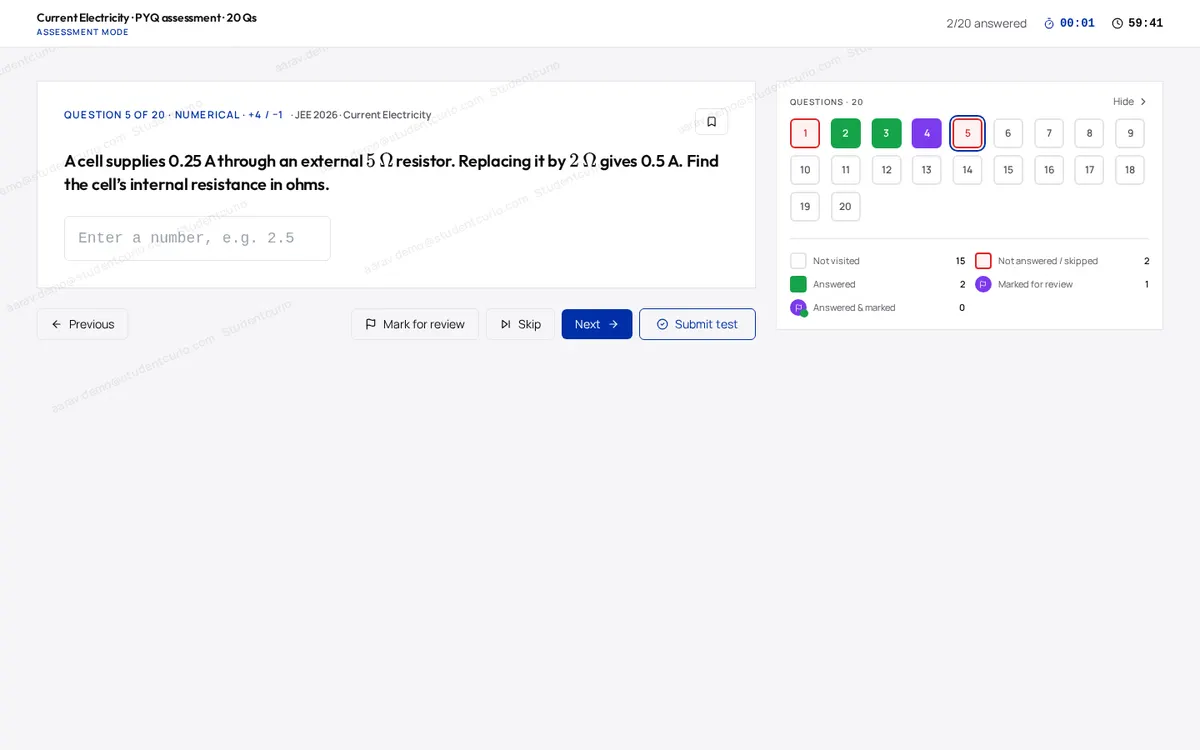
The same question set can be taken two ways. Practice mode teaches as you go. Assessment mode behaves like the exam and saves the feedback for the end.
Use it when Sometimes you need to learn from each question as you go; other times you need to sit a timed paper with no hints.
How it works
- Choose an existing test or PYQ set.
- Pick Practice to see the correct answer, core concept, formula used and step-by-step solution after each question.
- Or pick Assessment for a countdown timer, a numbered question palette, skip and mark-for-review — and answers only after you submit.
- Either way, the attempt is saved to your results with per-question review.
An example
Take a Current Electricity PYQ set in assessment mode with a 40-minute timer. After submitting, open the review to see which numerical questions you got wrong, then retake just those in practice mode.
Good to know
- Single-correct MCQs, multiple-correct MCQs and numerical-answer questions are available.
- Written-answer assessments, AI grading and feedback for written answers are Coming Soon.
Try it on your own chapters
Free for now. Sign in with Google or email — no card needed.